
How to remove objects from photos without uploading them
Updated September 28, 2026 · Inpainting.app
Removing an object from a photo is two problems at once. First you have to tell the software exactly what should disappear. Then something has to invent the pixels that were hidden behind it. The second part is called inpainting: an AI model looks at everything around the hole and paints in the most plausible background. This guide covers both parts, with real results from the Inpainting.app object remover.
A quick example
Here the spoon on the saucer is painted over and removed in one pass with the default fast model. The spoon is small, it sits on a fairly uniform surface, and the model has plenty of saucer and table around it to copy from, which is the easiest case for any inpainting tool.

Marked: the spoon and its reflection
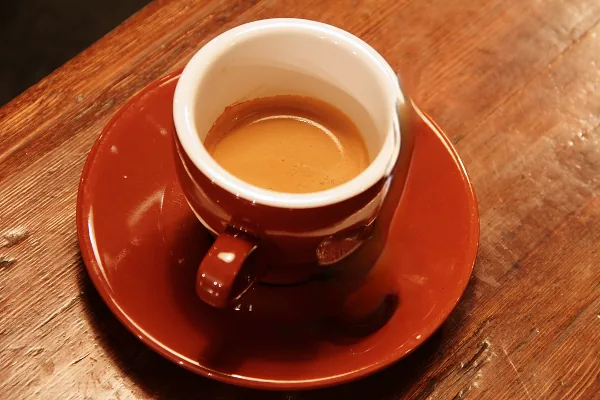
Result: fast model, one pass
Step 1: mark the whole object, not just its outline
The model only replaces the pixels you paint. Anything you leave unpainted is treated as real background and will be copied into the gap. That leads to the most common mistake: a clean stroke over the object that misses its shadow, its reflection, or a thin edge of colour. The shadow stays behind and the result looks like a ghost.
- Leave a margin. Paint a few pixels past the edge of the object. Objects in photos have soft, blurred borders and those border pixels still carry the object's colour.
- Include shadows and reflections. In the example above the spoon's highlight on the saucer is part of the mask.
- Use a brush that fits. A huge brush over a small object throws away good background for no reason. Zoom out, pick a brush a little wider than the object, and paint in one steady stroke.
Step 2: choose fast or high quality
Inpainting.app offers two models, and they are good at different things.
Fast uses MI-GAN, a 28 MB model designed for mobile devices. It takes well under a second on most computers and handles the everyday jobs: people in the background of a travel photo, litter on a beach, a date stamp, a blemish, a sign on a wall. High quality uses LaMa, a 93 MB model built around Fourier convolutions, which let it see the whole region at once. It is better at continuing repeating structure such as brickwork, fences, tiles, waves or foliage, and at filling larger holes. It currently runs on your processor rather than your graphics card, so expect it to take around ten to twenty seconds on a laptop.
The launch pad below is a harder, honest test: a tall lattice mast in front of evening sky, with bright lamps at its base. At normal viewing size both models turn the mast into sky. Zoomed in, neither result is perfect. The fast model leaves a hair-thin line where a guy wire ran outside the mask and smears the lamps at the base; the high quality model leaves a faint vertical trace where the mast was. Both leftovers are easy to fix with a second, narrow stroke, which is exactly how removal in passes is meant to work.
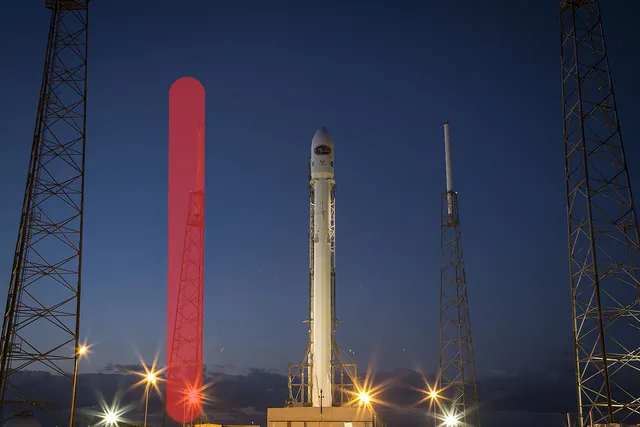
Marked

Fast (MI-GAN)

High quality (LaMa)
Step 3: work in passes
You do not have to get everything in one go. After each Remove, the result becomes the new starting image, so you can clean up leftovers with small strokes. For big objects this is usually better than one enormous mask: remove the edges first, then the middle, and each pass gives the model more real background to learn from. If a pass makes things worse, press Undo; it restores both the previous image and your brush strokes. Hold to compare shows the original photo so you can check you did not change more than you meant to.
What inpainting is good at, and what it is not
Inpainting models do not know what was really behind the object. They predict something that fits the surroundings. That works very well when the background is predictable, and poorly when it is not.
- Works well: sky, water, sand, grass, plain walls, floors, road surfaces, out-of-focus backgrounds, repeating patterns, small objects anywhere.
- Works with care: people in front of buildings (remove in passes and use high quality), text over detailed textures, objects that touch the edge of the photo.
- Struggles: anything that has to be reconstructed accurately rather than plausibly: a face hidden behind a hand, a missing part of a logo, a person standing in front of another person, or an object that covers most of the frame. Large commercial tools built on image-generation models do better here; a small model running on your own device cannot invent that much convincingly.
Resolution and quality
Only the pixels you paint are replaced. Every other pixel in the downloaded PNG is exactly the pixel from your original, at the original resolution. Internally the models work at 512 × 512 pixels around the hole, so a very small object in a very large photo keeps plenty of detail, while a huge hole in a large photo is filled at a lower internal resolution and can look slightly soft. For large removals, crop the photo first or remove the object in several smaller passes.
Privacy
Most online object removers upload your photo to a server, run the model there and send the result back. Inpainting.app downloads the model to your browser once, after you agree, and runs it locally with WebGPU or WebAssembly. Your photo, your brush strokes and the result never leave your device, and the editor runs on a separate page with no ads or analytics. If you want to know how that works in detail, read how Inpainting.app runs AI models in your browser.
Checklist
- Paint over the object, its shadow and its reflection, with a small margin.
- Start with Fast; switch to High quality for large holes or repeating textures.
- Clean up leftovers with small extra passes instead of one huge mask.
- Use Hold to compare before you download.
Example photos: coffee cup (Rachel Michetti) and cat (Stefan van der Walt), CC0; Falcon 9 launch pad (SpaceX) and Eileen Collins (NASA), public domain. All results shown were produced with the tools on this site.